 Gensta.ai
Seedream 5.5: generate and edit photos in Gensta
Work with photos and references, preserve important details through edits, and understand when to use the layer editor instead.
What is available in Gensta
Select Seedream 5.5 in the Gensta website or Telegram bot to generate from text or edit a photo. The current interface offers 1K and 2K, aspect ratio controls and up to ten input images. Each run returns one image. This model is not shown in the iOS app.
Multiple references do not mean multiple outputs. Three separate compositions require separate generations. Asking for “three versions in the picture” can produce a collage instead.
Open Seedream 5.5Prepare references with a clear purpose
Give each reference a role. The first photo might show the product, the second a color palette and the third a background. Explain which properties to transfer and which to ignore. Avoid adding several nearly identical photos without a reason.
For a portrait, choose a sharp image with a clearly visible face. For products, useful angles reveal the shape and important details. Compare the result to the sources when accuracy matters: generation can alter lettering, proportions or a small feature.
Example: refresh a product photo background
Try: “Use the first photo as the source for the ceramic cup. Preserve the handle shape, glaze and pattern. Replace only the setting: a bright kitchen, wooden counter and soft morning light from the left. One cup, no added lettering, no plants obscuring it and no extra objects. Keep the upper third clear for a headline.”
Check the product shape and lighting first. If the result works, change just one thing in the next edit, such as the background temperature. This makes it easier to see which instruction affected the image.
Iterative edits and the layer editor solve different problems
To continue editing, use the latest successful output as the next input and specify what to change and preserve. For example: “Keep the composition and cup unchanged. Make the background warmer without changing the direction of the light.” This is a new, separately charged generation.
To manually move an object, resize it or change stacking order, use a layer editor. Seedream 5.5 API capabilities and the consumer “Edit layers” button are different routes: the existing Gensta editor still uses Seedream 5.0 Pro. Selecting 5.5 in the photo generator does not automatically switch the editor engine.
Choose a size and assess the result
Start at 1K to check the idea. Before a larger order, choose the aspect ratio, review the credit price and make one version. Select 2K for a final asset when useful, but a larger image will not fix a poor composition or altered label.
Check whether key details are preserved, whether the composition fits the publishing space and whether manual finishing is needed. Leave room for a real HTML headline on a website or product specifications in a listing. Do not treat generated visuals as factual evidence about a product.
Open Seedream 5.5Frequently asked questions
Can I generate four images at once?
The current Seedream 5.5 integration in Gensta returns one image per run. Use separate requests for a series.
Why is Seedream 5.5 missing from the iOS app?
The current Gensta catalog disables this model on iOS. Use the website or Telegram; model availability differs between platforms.
Do I need to choose prompt optimization?
No. The integration uses standard. The interface does not expose a control with only one permitted value.
Sources and service capabilities
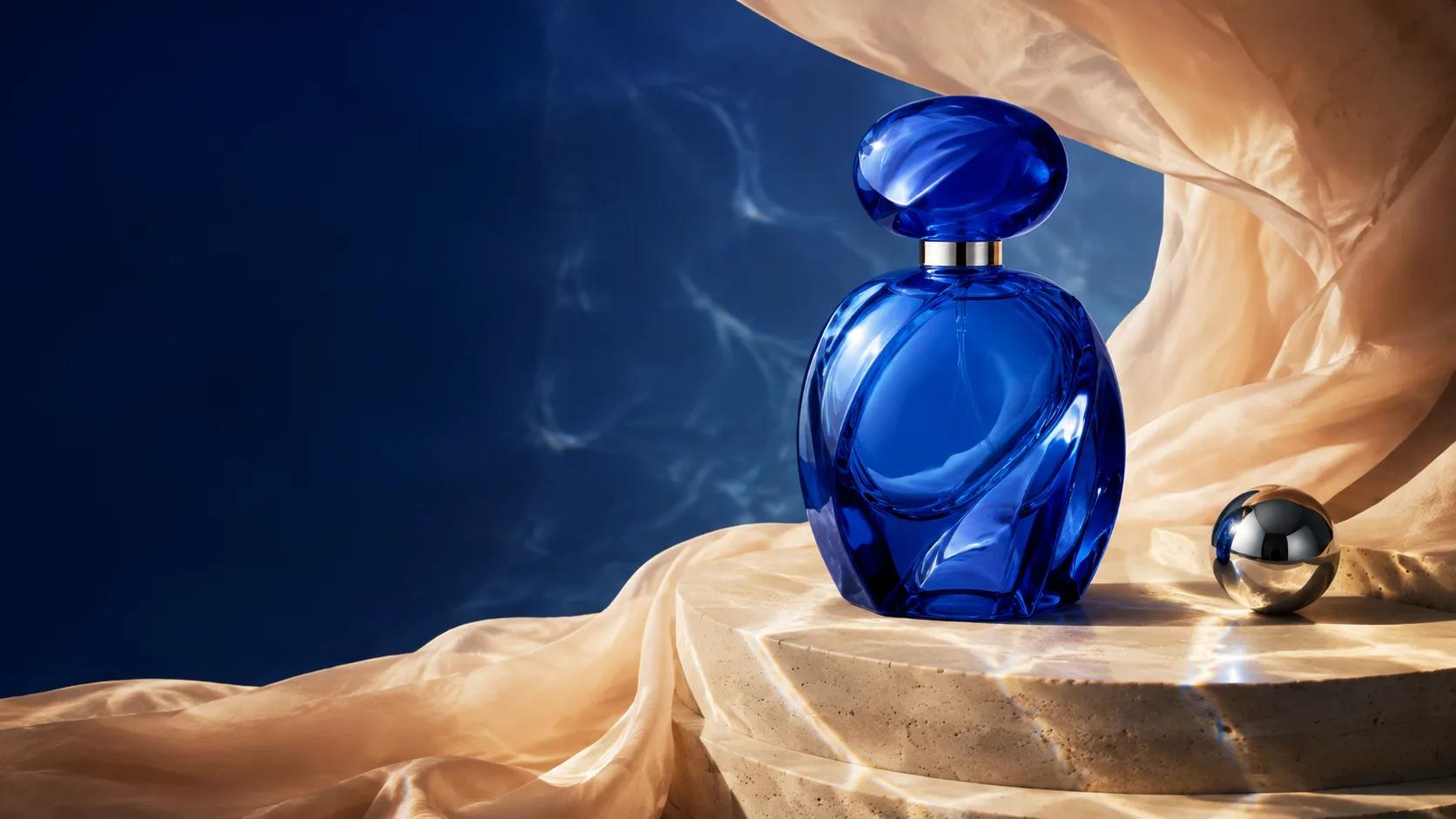
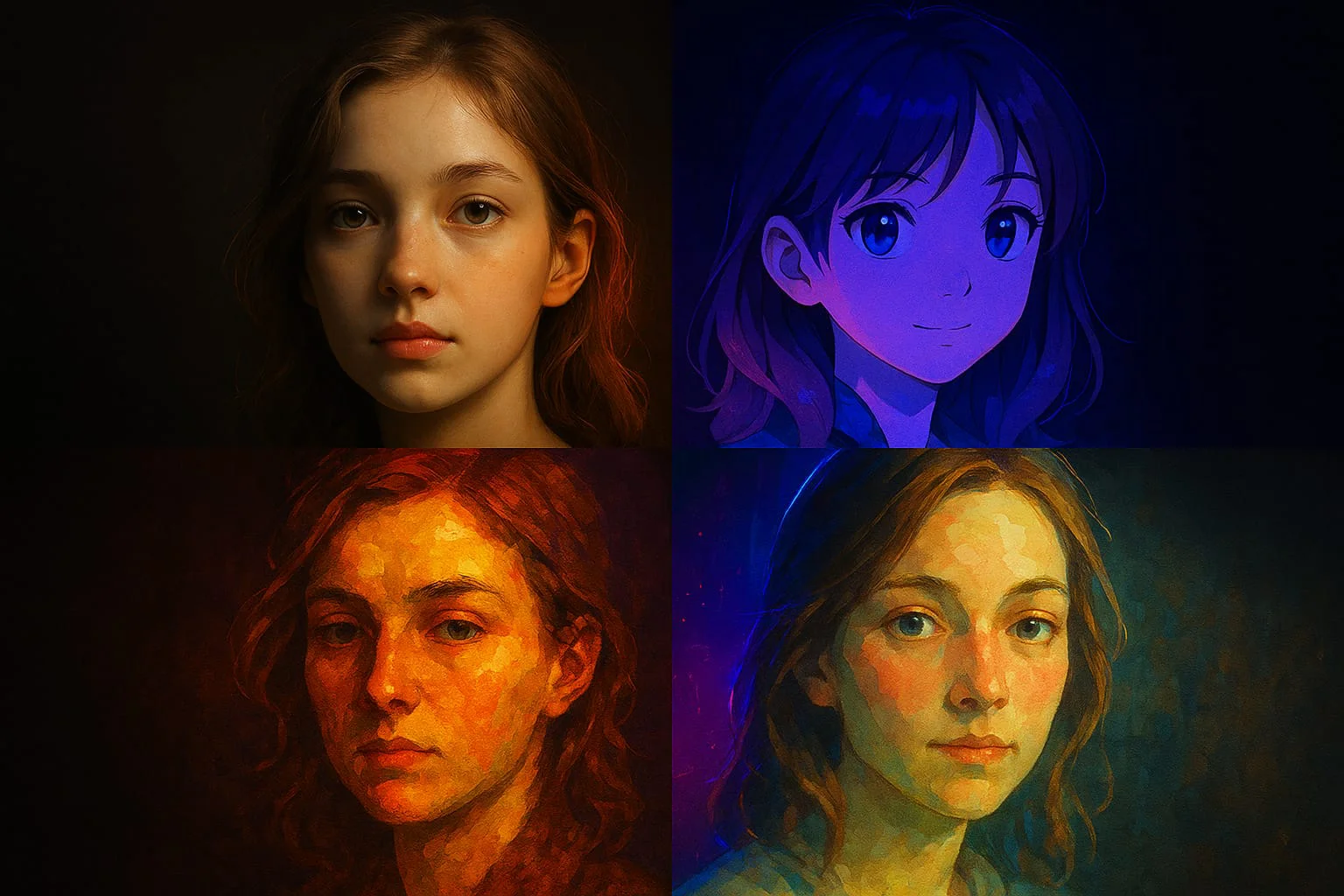
This describes the Gensta interface as of November 16, 2026. The API may expose additional options. The cover is illustrative; example prompts do not guarantee an identical result.
All articles
GPT Image 2.6: images, SVGs and GIFs in Gensta
Choose an output format, prepare references and create an image, vector illustration or short animation in Gensta.
Video production with Gensta.ai: from concept to final ad
How we produce ads, adapt them for different screens and localize them for new audiences. Explore the work and estimate your project.
Gensta Academy: learn to create AI video
Turn a photo into a film: a studio reference, narration, Seedance 2.5 and restrained editing. A practical starting point for beginners.