 Gensta.ai
GPT Image 2.6: images, SVGs and GIFs in Gensta
Choose an output format, prepare references and create an image, vector illustration or short animation in Gensta.
Choose the deliverable first
Choose PNG or JPEG for a photo, advertising visual or edit of an existing image. Choose SVG for a simple illustration, icon or emblem with editable paths. Choose GIF for a short repeating motion. These are different design tasks: changing the file extension does not turn a photograph into a useful vector mark.
In Gensta, open Create → Photo → GPT Image 2.6. Select Sunburst or Flare, size and quality. Start with one output, check the composition, then order more variations if needed.
Open GPT Image 2.6Photo editing: define what must stay unchanged
For PNG/JPEG, Gensta accepts up to four reference images and returns one to four outputs. Explain each reference: product, character, palette or composition. Set the output count in the controls instead of asking for “four versions in the picture”.
Try: “Use the first photo as the product source. Preserve the bottle shape, cap and label. Change only the setting: pale stone surface, soft side light, shadow to the right. One bottle in the frame, space for a headline above, no added text.” Inspect small lettering and geometry before publishing.
SVG: start with a simple silhouette
The current integration generates one SVG from text without reference photos. Use this format when you plan to adjust colors and paths in a vector editor.
Try: “Flat vector illustration of a coffee cup and two coffee branches. Three colors, large closed shapes, clean outlines, no gradients, photographic textures or text.” A clear silhouette and restrained palette make the result easier to edit. Download the original SVG: the raster preview in a chat is not the vector file.
GIF: one action and a clear loop
Gensta returns one animation per request, with 2–16 frames and 20–2000 milliseconds per frame. Nine frames at 200 ms define a cycle of about 1.8 seconds. Describe motion separately from appearance.
Try: “A small paper plane gently rocks in the air against a plain blue background. Locked camera. At the end it returns to its starting position. No new objects and no text.” For a longer film with scenes, dialogue and editing, use a video model instead of packing more action into a short GIF.
Quality and price: check before generating
Gensta quotes a fixed credit price before generation based on the selected settings. This retail price is different from an OpenAI invoice for actual tokens. SVG includes vector authoring, and GIF contains multiple frames; compare matching formats and settings.
Do not automatically start a series at the maximum size and quality. Check a smaller version first: is the silhouette clear, is the product preserved, does the motion match the idea? Then raise settings for the selected composition. The interface shows the price before confirmation.
Open GPT Image 2.6Frequently asked questions
Can I turn an uploaded photo into SVG?
Not through the current GPT Image 2.6 route in Gensta. SVG takes text without photos. Choose PNG or JPEG to edit a photograph.
Can I request four GIFs at once?
No. SVG and GIF are limited to one output per request. PNG/JPEG support 1–4 outputs.
Is the new version always better than GPT Image 2.5?
Not necessarily for every task. Compare the same request by accuracy, retries and price. New formats are useful when you need a vector file or an animation.
Sources and service capabilities
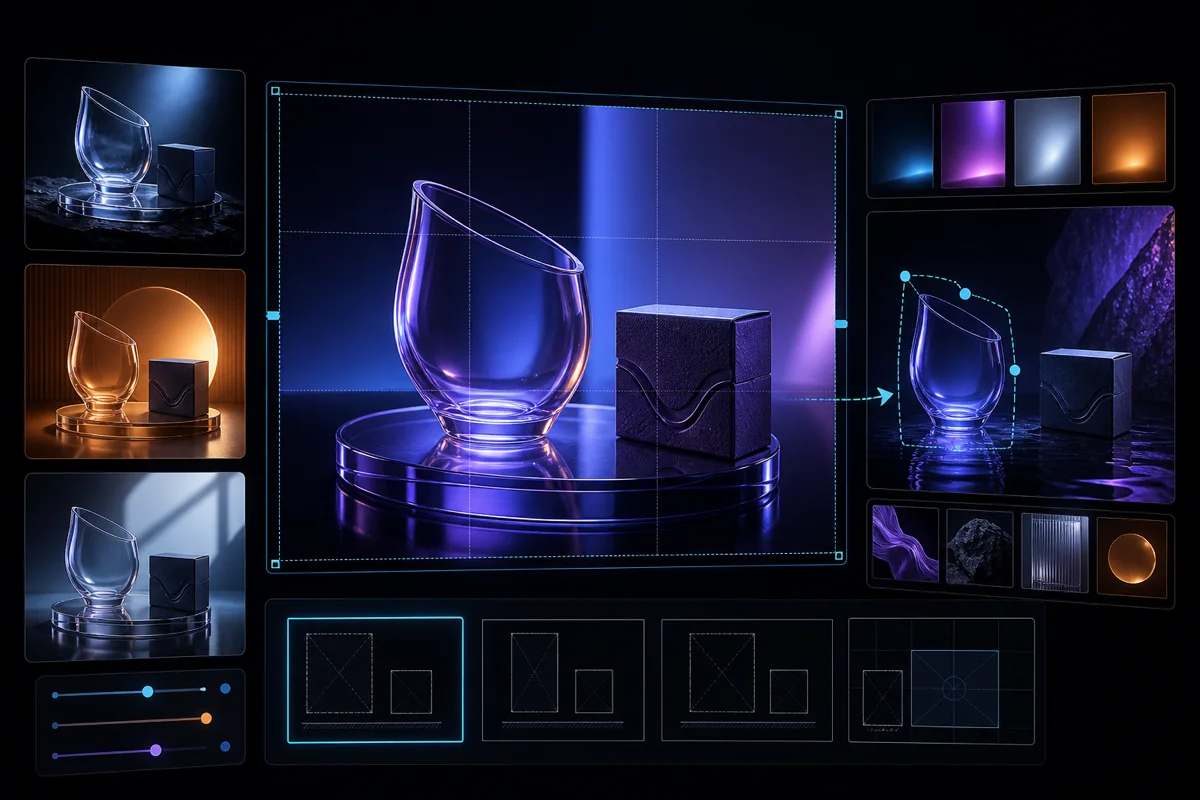
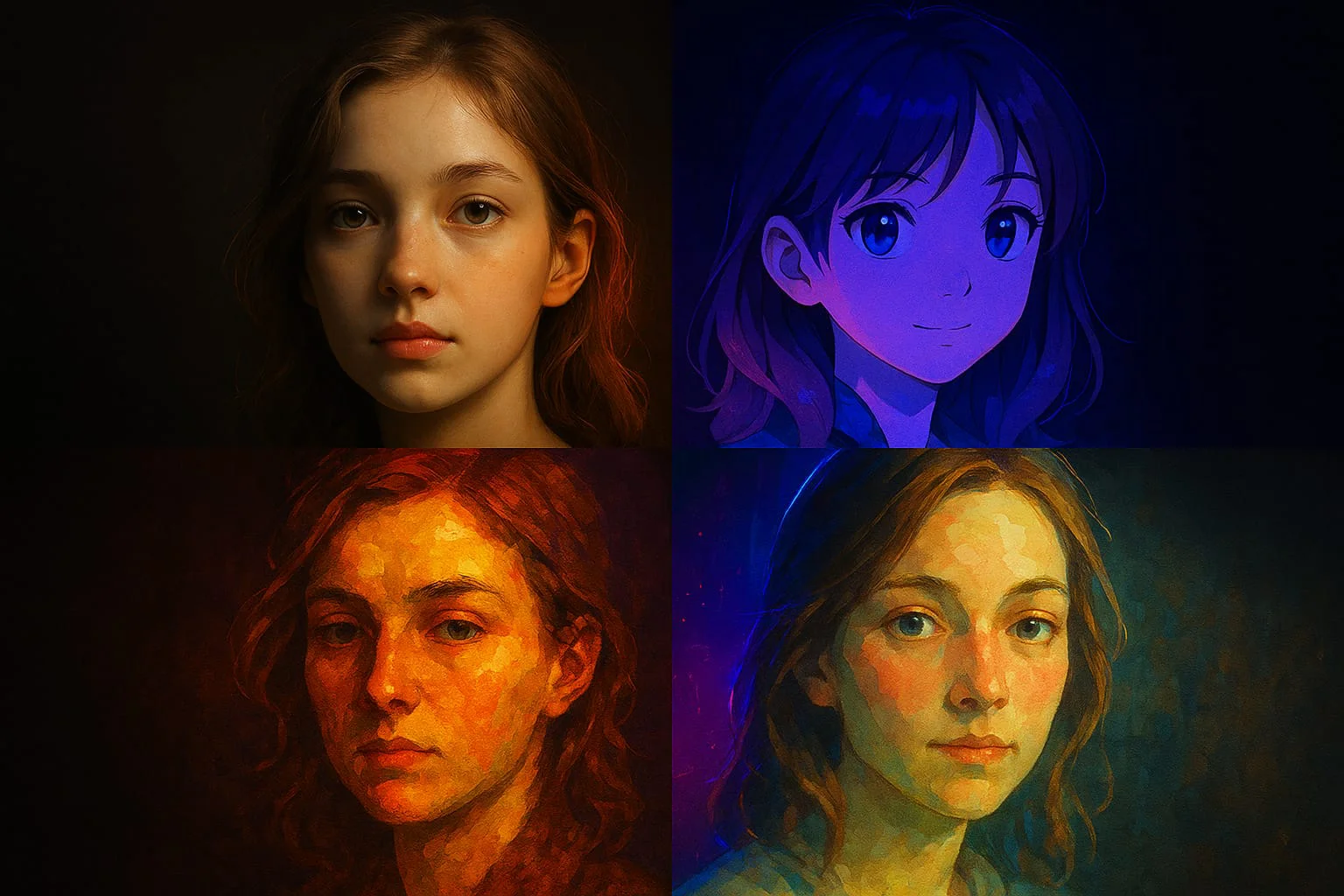
This article describes the Gensta integration as of November 16, 2026. Prompts are examples to try, not benchmark results. The cover is illustrative.
All articles
Seedream 5.5: generate and edit photos in Gensta
Work with photos and references, preserve important details through edits, and understand when to use the layer editor instead.
Video production with Gensta.ai: from concept to final ad
How we produce ads, adapt them for different screens and localize them for new audiences. Explore the work and estimate your project.
Gensta Academy: learn to create AI video
Turn a photo into a film: a studio reference, narration, Seedance 2.5 and restrained editing. A practical starting point for beginners.