 Gensta.ai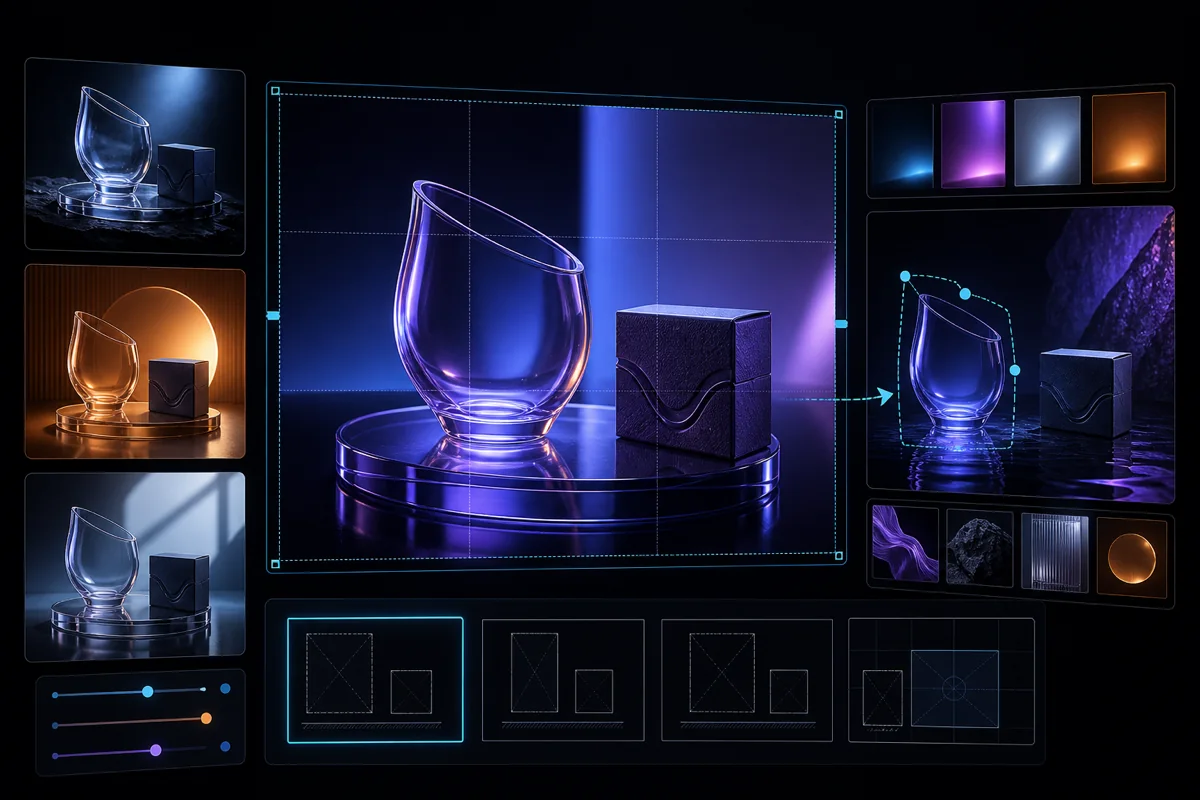
GPT Image 2.5: turn your photo into a comic and edit images
Sunburst and Flare in Gensta: choose a variant, upload photos and generate 1–4 images. Start with a personal comic, a greeting card or a product photo.
What GPT Image 2.5 does
GPT Image 2.5 is an OpenAI model family for generating images from descriptions and working with uploaded photos. Gensta presents it as one model with a variant selector in settings. You can describe a new scene or provide your own photo as a reference.
A personal comic makes a simple first project: an everyday story about you, a friend or a pet, told in four panels on one page. The result has a clear purpose and is easy to share with someone who will recognize the situation. Use the prompt below, then make the story your own.
Sunburst or Flare: which should you choose?
OpenAI positions Sunburst for generation and precise editing, and Flare for fast everyday generation. Start with Sunburst when using your own photo. To compare, try the same request in Flare with matching settings.
Gensta charges the same price for either variant when the other settings match. Actual generation time also depends on the settings and current load; there is no fixed completion time for every request.
How to try it in Gensta
On the website, open image creation using the button below. GPT Image 2.5 will already be selected. Upload a photo, paste your prompt and check the price before starting.
In Telegram: /start → “🖼️ Photo” → “⚙️ Photo settings” → GPT Image 2.5. Choose Sunburst and one output image in model settings. Send your photo, then the description, and confirm the generation.
For a first test, you can keep 1K and medium. For a comic with lettering, try 2K and high: it costs more but provides more room for detail. Four comic panels make one output image, so keep the output count at 1.
Open GPT Image 2.5Copy this prompt: a comic about my everyday life
Upload a clear photo of the characters. A selfie, a photo with a friend or a picture with your pet all make possible starting points. Copy the entire prompt:
Create one funny comic page with 4 panels in a 2×2 grid. Use the people or pets in the uploaded photo as the characters; keep their recognizable features and clothes. Story: I planned an early night but ended up scrolling on my phone until 3 am. Panel 1: a confident plan. Panel 2: a small temptation. Panel 3: things get out of hand. Panel 4: a kind, unexpected punchline. Bright illustrated style, expressive emotions, consistent characters in every panel. One short line of dialogue per panel, in large, legible English lettering. No extra text.
Replace just the sentence after “Story:”. Try “my friend and I went shopping just for bread”, “my cat decided to become my boss” or “I am packing for a trip and trying to close my suitcase”. A familiar, specific situation makes the joke personal. You do not need a long biography.
Two more ideas: a greeting card and a product scene
A card from your photo can be a small surprise for a friend:
“Use the people in the uploaded photo as the characters in a celebratory illustration. Keep their recognizable faces. They are celebrating a small victory: Friday has finally arrived. Warm lighting, gentle humor, a cozy scene. The only text, in large lettering: ‘We made it to Friday!’. A vertical greeting card, no borders or logos.”
For a product scene, upload your own photo of the item:
“Place the product from the photo on a light table by a window. Keep its shape, color, proportions and existing markings; do not invent a new logo. Morning light, a soft shadow and a calm cream background. Center the product and leave space around it. No added text.”
Before publishing a commercial image, check the details, markings and text. The model may change them.
Settings, output count and price
In Gensta, you can upload up to 4 input images and generate 1–4 output images per request. These are different settings: input photos provide characters or objects, while the output count determines how many new files you receive.
Available variants are Sunburst and Flare; sizes are 1K, 2K and 4K; quality options are low, medium, high, xhigh and max. Aspect ratios are 1:1, 3:2, 2:3, 16:9 and 9:16. The defaults are Sunburst, 1K, medium, 1:1 and one output.
In the consumer Gensta product, the price is known before you start and depends on your selected settings. More outputs increase the total price. Choose one image for a first test and check the current price in the interface. The separate Gensta API product for developers uses usage-based billing.
How to refine a result
First describe what should stay: faces, clothes, an object or the composition. Then explain what should change: the background, style or action. For lettering, put the exact short text in quotes and specify the language.
If the comic is crowded, shorten dialogue to 2–5 words and remove secondary events. If appearance matters, use a clear reference and explicitly ask to preserve the character’s features. Still check the likeness and spelling: no prompt guarantees a perfect result.
For another edit, upload the generated image and list the specific changes. For example: “Keep all four panels. In the final panel, replace the dialogue with ‘Okay, five more minutes’. Change nothing else.” Each new generation is charged separately.
Try a story about yourself
One photo, one familiar situation and one output image. Start with the ready-to-use prompt, then swap in your own story.
Open GPT Image 2.5Frequently asked questions
Do I need a photo?
No. Without a photo, the model generates an image from text. A photo helps establish the characters’ appearance for a personal comic.
Do four comic panels require four outputs?
No. This example places four panels on one page. Select one output. Four outputs mean four separately generated images.
Can I specify the language of the dialogue?
Yes. State the language and keep the lines short. Check the lettering before sharing, since mistakes are possible.
Do I need a ChatGPT subscription?
No separate ChatGPT subscription is needed to generate in Gensta. You use your Gensta balance, and the price is shown before you start.
Does GPT Image 2.5 have safety filters?
Yes. Requests and results are subject to OpenAI safety rules. Try an ordinary portrait, comic, greeting card or product photograph for your first test.
Sources
Written by the Gensta.ai team. Variant descriptions were checked against OpenAI documentation; settings and limits describe Gensta as of September 13, 2026. Prompts are suggestions for your own tests, not guarantees of a particular result. The cover is a thematic illustration, not a model benchmark.
All articles
Gensta Academy: learn to create AI video
Turn a photo into a film: a studio reference, narration, Seedance 2.5 and restrained editing. A practical starting point for beginners.
Video Generation API: Add AI Video to Your Product
How a video generation API works: competitive prices, current models, async jobs, and pay-as-you-go billing. What you need before the first request.
GPT Image 2 Review: Image Generation, Editing, and Prompt Examples
See what GPT Image 2 can do in Gensta, how its settings work, and use practical prompts for product cards, posters, text, and image editing.