 Gensta.ai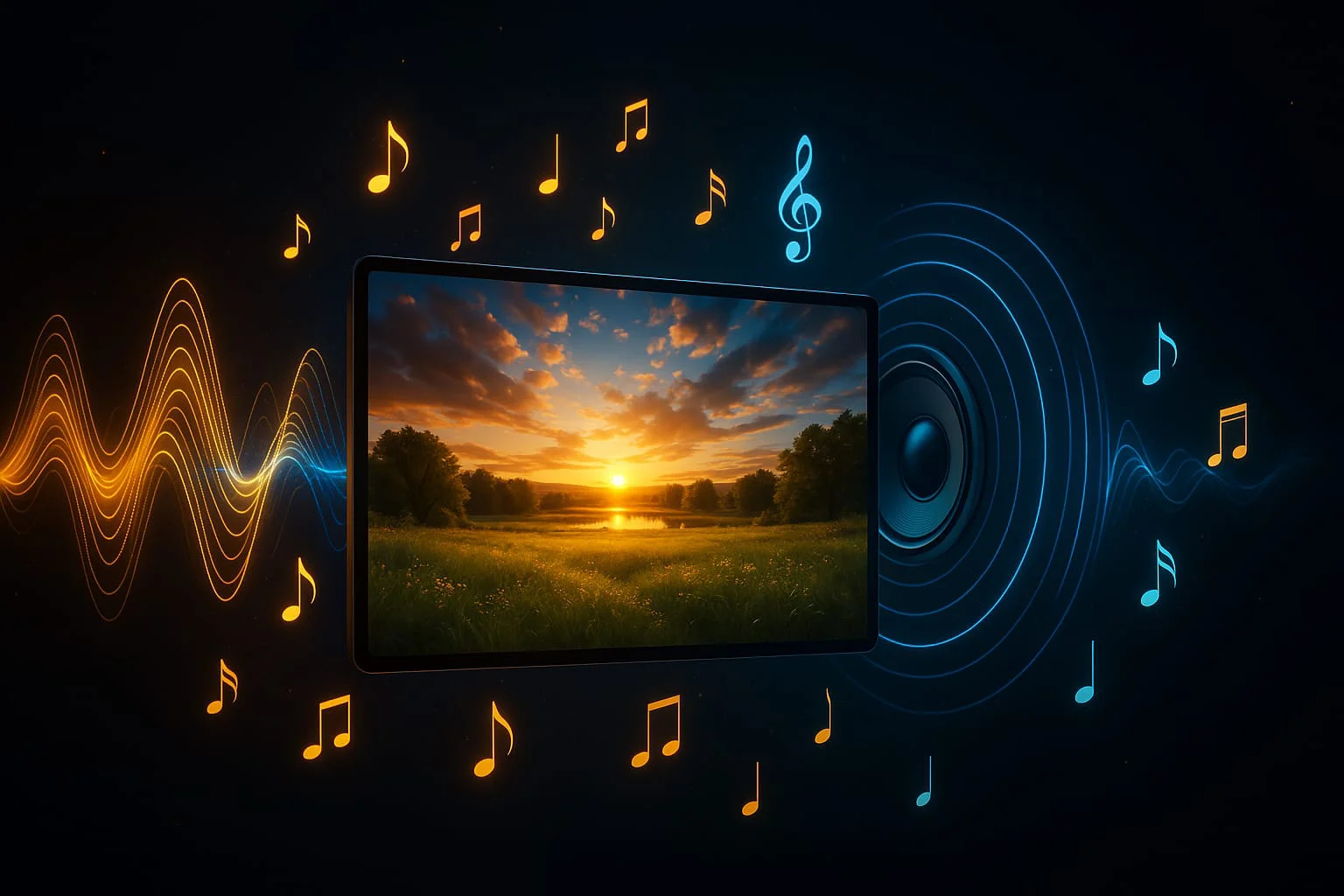
Veo 3.1: AI Video with Sound from Google — 2026 Review
Veo 3.1 by Google DeepMind is the only mainstream AI model that generates video with built-in audio — music, effects, and ambient sound in one prompt. Here's how it works.
What Is Veo 3.1 and How It Differs from Other AI Video Models
Veo 3.1 is a video generation model from Google DeepMind, released in October 2025. Its defining feature: native audio generation built into the model itself. Most AI video generators produce only the visual track — you have to add sound separately in editing. Veo 3.1 does everything in a single prompt.
The model generates 8-second clips at up to 4K resolution with synchronized audio — background music, sound effects, and atmospheric sounds. Technically, this uses 48kHz audio generated in parallel with the video track and synchronized frame-by-frame.
Veo 3.1 is part of Google's Gemini API ecosystem and is used in production tools for storytelling and advertising. On Gensta.ai, both versions are available: standard Veo 3.1 and the faster Veo 3.1 Fast.
Native Audio in AI Video: How Veo 3.1 Sound Generation Works
When you describe a scene in a prompt, Veo 3.1 automatically determines what sound should accompany it. Write "sunset beach with gentle waves" and you'll get video with wave sounds, seagulls, and a soft breeze. Describe "rainy city street" and the model adds raindrops, tire hiss, and muffled urban noise.
The audio layer covers three categories: atmospheric sounds (nature, city, interiors), sound effects (impacts, footsteps, action), and musical background. You can specify the audio character in your prompt — "tense music," "jazz accompaniment," or "silence with rare ambient sounds."
Note: Veo 3.1 embeds an invisible SynthID digital watermark identifying the content as AI-generated — important for platforms requiring AI content labeling.
Try on Gensta.aiHow to Create AI Video with Sound on Gensta.ai
Creating video with sound via Veo 3.1 on Gensta.ai takes three steps.
Step 1. Choose the model. Go to Create, select Video mode, and choose Veo 3.1 or Veo 3.1 Fast. The Fast version is quicker and uses fewer credits — great for experimenting.
Step 2. Write a prompt that includes sound. Describe not only what happens visually, but also the soundscape. For example: "a young woman walks through an autumn park, leaves rustling underfoot, a quiet melody playing in the distance." The more detail you provide about the sound, the more accurate the result.
Step 3. Get and download your video. Generation takes 1–3 minutes. The video is saved to your library with built-in audio, ready to publish without additional editing.
Try on Gensta.aiBest Use Cases for Veo 3.1
Video with built-in audio unlocks use cases unavailable with standard AI video generators.
Ads and promo clips. A short video with atmospheric sound and music is a complete social media ad format — no sound designer needed.
YouTube Shorts and Instagram Reels. Social algorithms boost reach for videos with audio. Veo 3.1 lets you create engaging vertical content from scratch.
Podcasts and video lectures. Use Veo 3.1 to generate visual intros and transition scenes with fitting music.
Storytelling and narrative. Background music and ambient sound create emotional atmosphere without additional production costs.
All articles
How to Animate a Photo with AI: Step-by-Step Guide 2026
Animating photos with AI is one of the most popular creative trends in 2026. Learn how to turn any still image into a living video in just a few minutes.

AI Video Generation: A Complete Guide to Neural Networks in 2026
An overview of all available neural networks for generating video from text and images. Which model to choose, pricing, and how to achieve professional results.

Sora 2 vs Veo 3.1 vs MiniMax 2.3: Comparing AI Video Models
A detailed comparison of three of the most popular AI video generation models. Quality, speed, pricing, and when to choose which model.