 Gensta.ai
How to Animate a Photo with AI: Step-by-Step Guide 2026
Animating photos with AI is one of the most popular creative trends in 2026. Learn how to turn any still image into a living video in just a few minutes.
What Is AI Photo Animation and How It Works
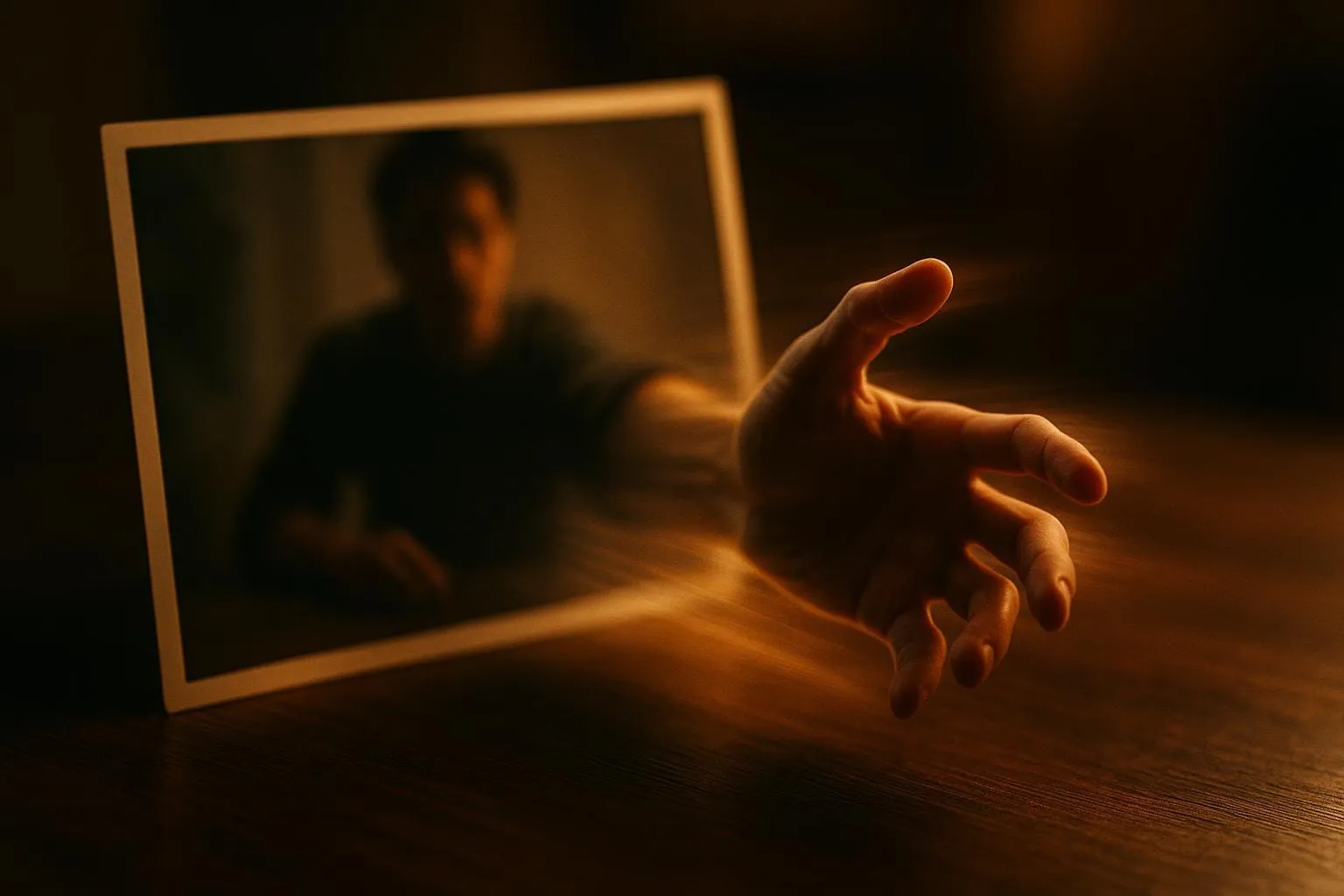
Animating a photo means turning a static image into a short video with natural movement — blinking eyes, a subtle head turn, hair flowing in the breeze, or waves on a distant shore. Modern AI models do this automatically: upload a photo, add a text description of the desired motion, and get a finished video in 1–3 minutes.
This is powered by image-to-video (I2V) models trained on millions of videos. They've learned to predict how objects in an image might realistically move. In 2026, the top models — Kling Motion Control, MiniMax 2.3, Wan 2.5, and Sora 2 — follow precise prompts: "the woman smiles and glances to the side," "leaves flutter in the breeze," "water flows gently left to right."
Common use cases include bringing old family photos to life, creating animated avatars, producing engaging Reels and Shorts content, or making short-form ads without a film crew.
Best AI Models for Photo Animation in 2026
Several powerful models are available for photo animation in 2026. Here's what each does best.
Kling Motion Control is a top choice for portrait animation. A unique feature: upload a reference video with the desired motion (a dance, gesture, or head turn) and the model transfers that exact motion to your photo. Perfect for creating dancing portraits.
MiniMax 2.3 offers an excellent balance of speed and quality. Works well with portraits, landscapes, and product shots. Supports 768p and 1080p output. The MiniMax 2.3 Fast variant delivers results in 30–60 seconds.
Wan 2.5 specializes in artistic and stylized animation. Best for animating illustrations, artwork, or drawn characters.
Sora 2 from OpenAI is the premium option for cinematic results, with excellent motion physics and fine scene detail.
All models are available on Gensta.ai — no need to sign up for multiple platforms.
Try on Gensta.aiHow to Animate a Photo Online: 3 Simple Steps
Animating a photo on Gensta.ai takes just three steps.
Step 1. Upload your photo. Go to the Create page and select Video mode. Upload your image (JPG, PNG, or WebP). Sharp, well-lit photos with a minimum resolution of 512×512 pixels produce the best results.
Step 2. Describe the motion. Write a prompt describing what should move and how — for example: "woman slowly smiles, hair blowing in the wind" or "ocean waves crash against the shore, seagulls fly in the distance." More specific prompts lead to more predictable, satisfying results.
Step 3. Choose a model and generate. Pick the right model for your goal (Kling Motion for portraits, MiniMax Fast for speed, Wan 2.5 for art-style), then hit Generate. Your video will appear in the Library in 1–5 minutes. Download in HD and share across social media, messaging apps, or ad campaigns.
Try on Gensta.aiTips for the Best Animation Results
A few practical tips to get the most realistic photo animation.
Start with a high-quality image. A sharp, well-lit photo gives far better results than a blurry or dark one. Minimum recommended resolution: 512×512 pixels; optimal: 1024×1024 or higher.
Be specific in your prompt. "Person moves" is too vague. "Man slowly turns his head to the right and smiles" gives the model a clear, actionable target. Describe speed, direction, and the nature of the movement.
Start with subtle motion. Slow, simple movements are easier for the model to render convincingly. Try "gentle breeze," "blinking," or "smooth head turn" before attempting complex action sequences.
Compare models. MiniMax and Kling interpret the same photo very differently — try both and pick the result you prefer.
Use presets. Gensta.ai offers ready-made presets optimized for photo animation — they include tested prompts and settings that deliver great results on the first try.
All articles
AI Video Generation: A Complete Guide to Neural Networks in 2026
An overview of all available neural networks for generating video from text and images. Which model to choose, pricing, and how to achieve professional results.
Sora 2 vs Veo 3.1 vs MiniMax 2.3: Comparing AI Video Models
A detailed comparison of three of the most popular AI video generation models. Quality, speed, pricing, and when to choose which model.
Kling Motion Control: How to Animate Photos with Video References
A detailed guide on using Kling 2.6 Motion Control to transfer motion onto photos. Dance videos, character animation, and creative projects.